
Roles
Define staff hierarchy and assign fine-grained permissions to your team members.
The Roles system allows you to create a structured hierarchy for your server staff and assign specific permissions based on their responsibilities.
Role Management
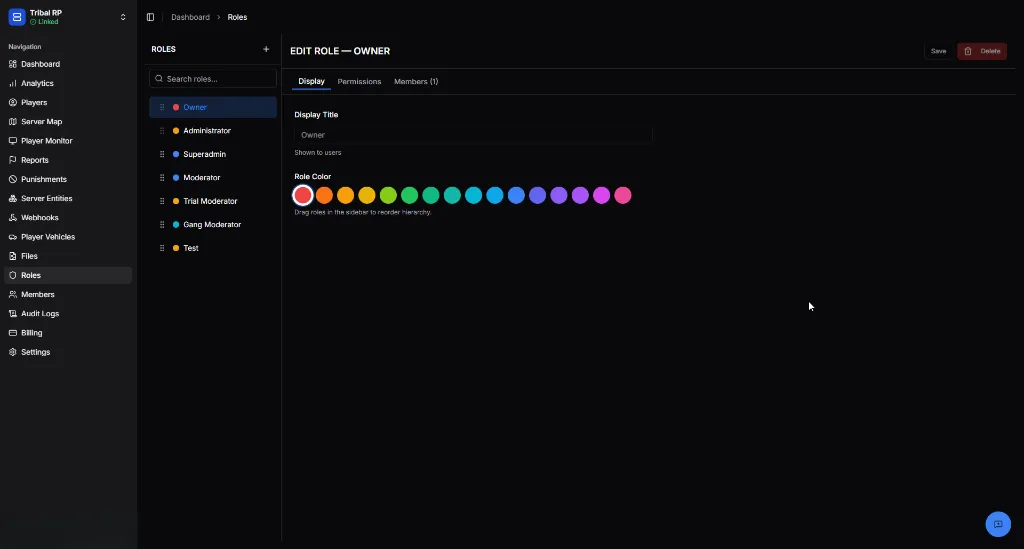
Section titled “Role Management”The sidebar on the left displays all existing roles. You can manage the hierarchy by dragging roles to reorder them—roles higher in the list typically represent higher authority in your staff structure.
- Search Roles — Quickly find a specific role by name.
- + Button — Create a new staff role.
- Save / Delete — Apply changes or permanently remove a role.
Display Settings
Section titled “Display Settings”The Display tab configures how the role appears to staff and in logs.
| Setting | Description |
|---|---|
| Display Title | The name of the role as seen by users (e.g., Administrator, Moderator). |
| Role Color | Assign a unique color to differentiate roles in the dashboard and monitoring tools. |
Permissions Assignment
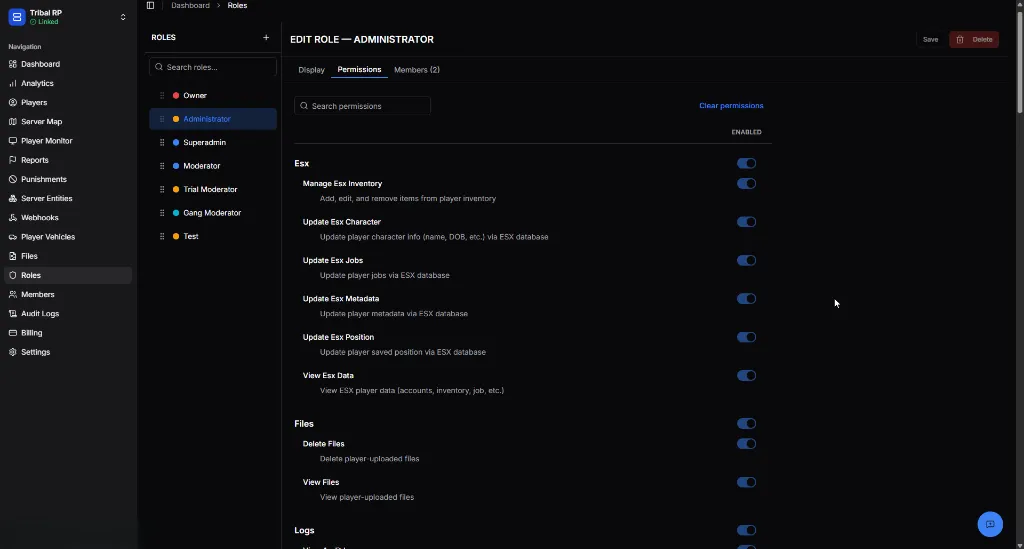
Section titled “Permissions Assignment”The Permissions tab is where you define exactly what actions a role is authorized to perform. Permissions are organized into logical categories to make management easy.
Assigning Members
Section titled “Assigning Members”Use the Members tab within a specific role to add or remove staff members. A single member can be assigned to multiple roles, and their total permissions will be a combination of all assigned roles.