
Players
View, search, and manage all players on your server
The Players page is your central hub for viewing and managing everyone who has connected to your server.
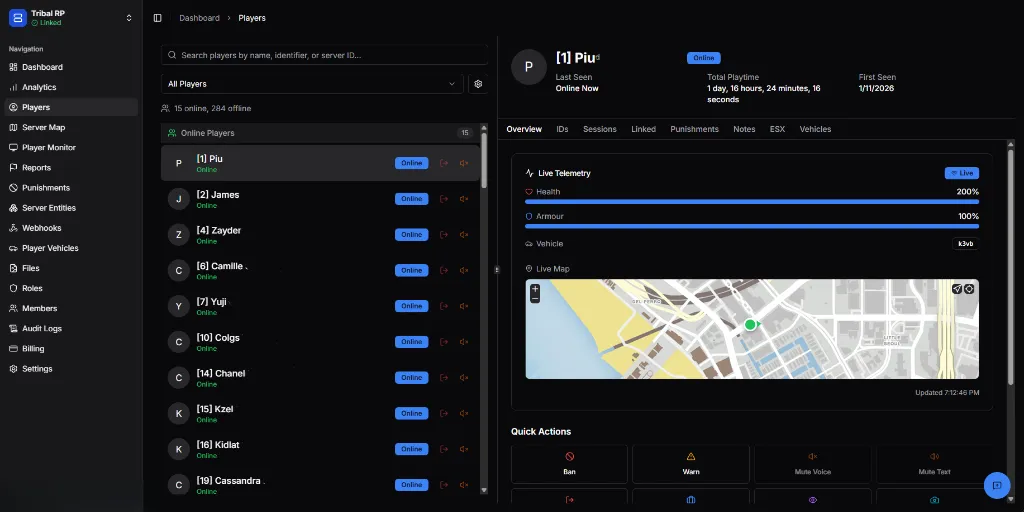
Player List
Section titled “Player List”Search & Filter
Section titled “Search & Filter”- Search bar — Find players by name, identifier, or server ID
- Filter dropdown — Show “All Players”, “Online”, or “Offline”
- Player count — Shows online and offline totals (e.g., “15 online, 284 offline”)
Online Players Panel
Section titled “Online Players Panel”Lists all currently connected players with:
- Avatar initial — First letter of player name
- Display name — Player’s in-game name with server ID
- Status badge — Online/Offline indicator
- Quick action buttons — Fast access to common actions
Player Profile
Section titled “Player Profile”Click any player to view their detailed profile. The profile panel shows:
Header Info
Section titled “Header Info”| Field | Description |
|---|---|
| Server ID | Current session ID (e.g., [1]) |
| Name | Player’s display name |
| Status | Online/Offline badge |
| Last Seen | When player was last active |
| Total Playtime | Cumulative time on server |
| First Seen | When player first joined |
Profile Tabs
Section titled “Profile Tabs”Overview
Section titled “Overview”The default tab showing live player data:
Live Telemetry (when online):
- 💚 Health — Current health percentage
- 🛡️ Armour — Current armour percentage
- 🚗 Vehicle — Current vehicle (if any)
- 📍 Live Map — Real-time location on server map
Quick Actions — One-click moderation tools:
- Ban — Ban the player
- Warn — Issue a warning
- Mute Voice — Disable voice chat
- Mute Text — Disable text chat
- And more…
View all player identifiers for investigation and ban evasion detection.
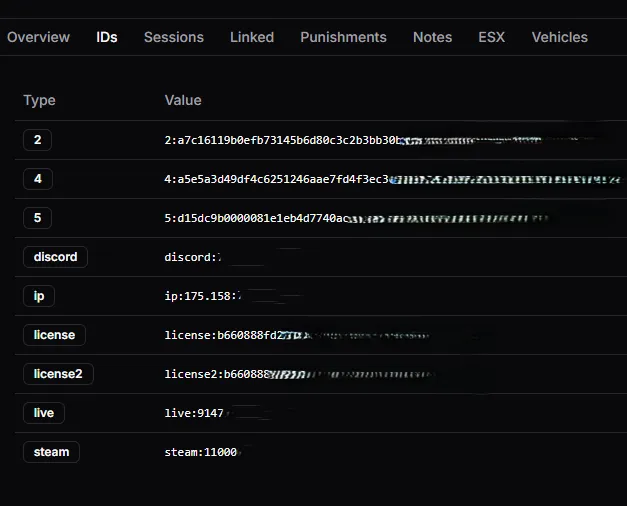
| ID Type | Description |
|---|---|
| 2, 4, 5 | FiveM license tokens |
| discord | Discord user ID |
| ip | Connection IP address |
| license | Primary FiveM license |
| license2 | Secondary FiveM license |
| live | Xbox Live ID |
| steam | Steam64 ID |
Sessions
Section titled “Sessions”View complete connection history for the player.
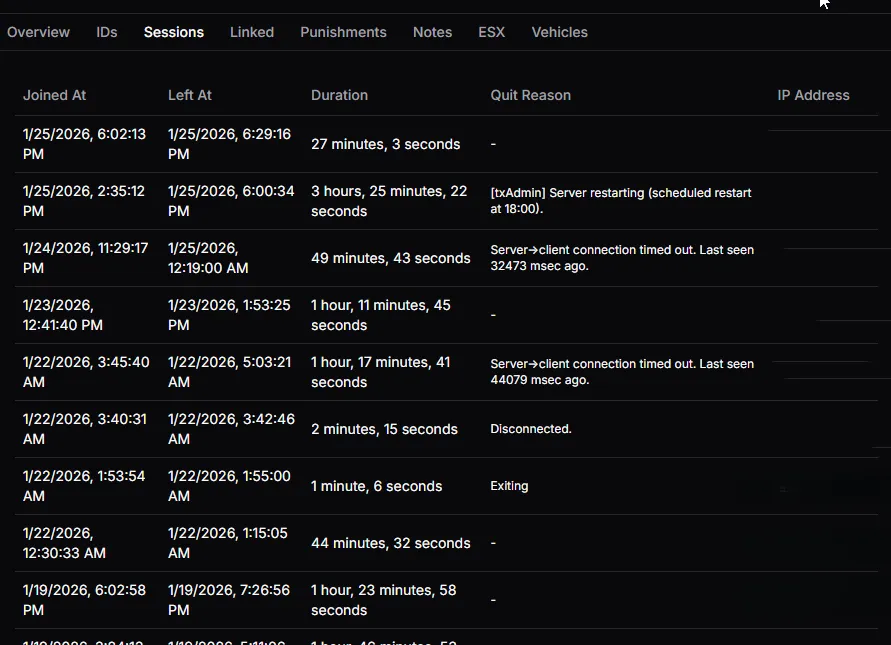
| Column | Description |
|---|---|
| Joined At | Session start timestamp |
| Left At | Session end timestamp |
| Duration | Total session length |
| Quit Reason | Why the player disconnected |
| IP Address | Connection IP for that session |
Common Quit Reasons:
-— Normal disconnectExiting— Player closed gameDisconnected— Manual disconnectServer→client connection timed out— Connection lost[txAdmin] Server restarting— Scheduled restart
Linked
Section titled “Linked”Detect potential alternate accounts sharing identifiers.
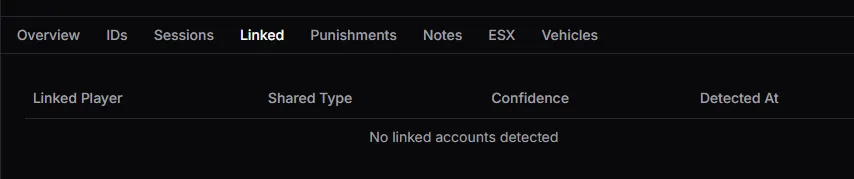
| Column | Description |
|---|---|
| Linked Player | The suspected alt account |
| Shared Type | What identifier is shared (IP, license, etc.) |
| Confidence | How likely they’re the same person |
| Detected At | When the link was discovered |
Punishments
Section titled “Punishments”View all warnings, kicks, and bans issued to this player.
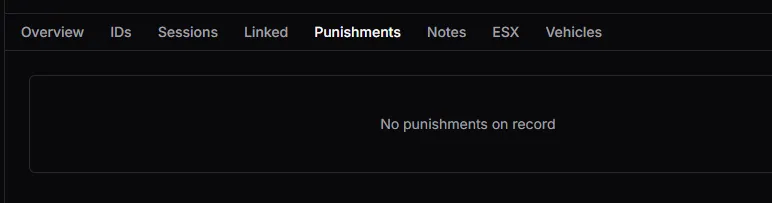
When punishments exist, you’ll see:
- Punishment type (ban, warn, kick)
- Reason given
- Staff member who issued it
- Date and duration
“No punishments on record” means the player has a clean history.
Staff notes about the player (not shown in screenshots):
- Add private notes visible only to staff
- Track behavior patterns
- Document warnings given verbally
ESX / Framework
Section titled “ESX / Framework”Framework-specific data (varies by server setup):
- Character information
- Inventory data
- Economy (cash, bank)
- Job and gang info
Vehicles
Section titled “Vehicles”Player-owned vehicles:
- Vehicle model and plate
- Garage location
- Purchase history
Best Practices
Section titled “Best Practices”- Check IDs before banning — Confirm you have the right player
- Review sessions for patterns — Frequent disconnects may indicate issues
- Use linked detection — Catch ban evaders early
- Document with notes — Help other staff members
- Check punishment history — Context for repeat offenders